

Windows 10 Software Compatibility Check - How To Use
Are you having problems with your computer running slower than it used to? You might be surprised to know that one of the issues could be incompatible software. In this blog post, we'll show you how to use Windows 10 software compatibility check tool to see if that's the case.What is a Windows 10 software compatibility check?
When you upgrade your computer to a new version of Windows, you may find that some of your old software no longer works. This is because newer versions of Windows are not always compatible with older software. If the compatibility checker finds an issue with your software, it will provide you with a list of options to help you fix the problem. In some cases, you may be able to install an update for your software that will make it compatible with Windows 10. In other cases, you may need to uninstall the incompatible software and then install a new version that is compatible with Windows 10.Windows 10 Hardware Requirements?
Processor: 1 gigahertz (GHz) or faster
RAM: 1GB for 32-bit / 2GB for 64-bit
Hard drive: 32GB or larger hard disk
Graphics card: DirectX 9 or later with WDDM 1.0 driver
Display: 800x600
Also, read How To Rollback NVIDIA Drivers in Windows 10.How to use Windows 10 software compatibility check?
If you're running an older version of Windows, you can use the Windows software compatibility check to see if your PC can run a particular program. Here's how: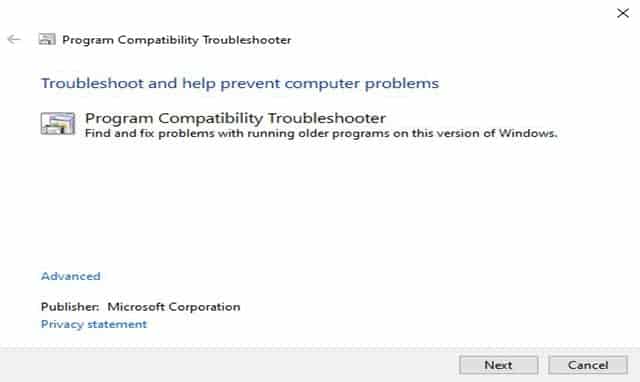
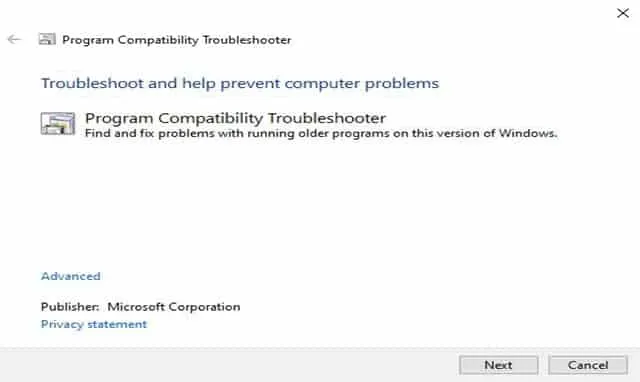
- Type 'compatibility' into the Windows search bar and select 'Program Compatibility Troubleshooter' with apps and devices.
- On the next page, select the app or device you want to check compatibility for.
- Windows will now scan your PC for any potential compatibility issues. If none are found, you'll see a message saying that your PC is compatible with the app or device. If there are any issues, you'll be given a list of them along with suggested solutions.
What are the benefits of using Windows 10 software compatibility check?
When Windows 10 was released, many users were disappointed to find that their favorite programs and games were no longer compatible. However, there is a way to check for compatibility before you upgrade. The Windows 10 compatibility check will scan your computer for any programs or games that are not compatible with the new operating system. If it finds any, it will provide a list of options for you to choose from. You can then decide whether to keep the program or game or uninstall it and find a replacement. The Windows 10 compatibility check is a valuable tool for anyone considering upgrading to the new operating system.How to fix problems with incompatible software?
If you're having problems with incompatible software on your Windows computer, there are a few things you can do to try and fix the issue. First, try updating the software to the latest version. This may solve the compatibility issue. If updating the software doesn't work, you can try running it in compatibility mode. To do this, right-click on the software's icon and select "Properties." In the properties window, select the "Compatibility" tab and check the box next to "Run this program in compatibility mode." Select the operating system that the software is compatible with from the drop-down menu and then click "OK."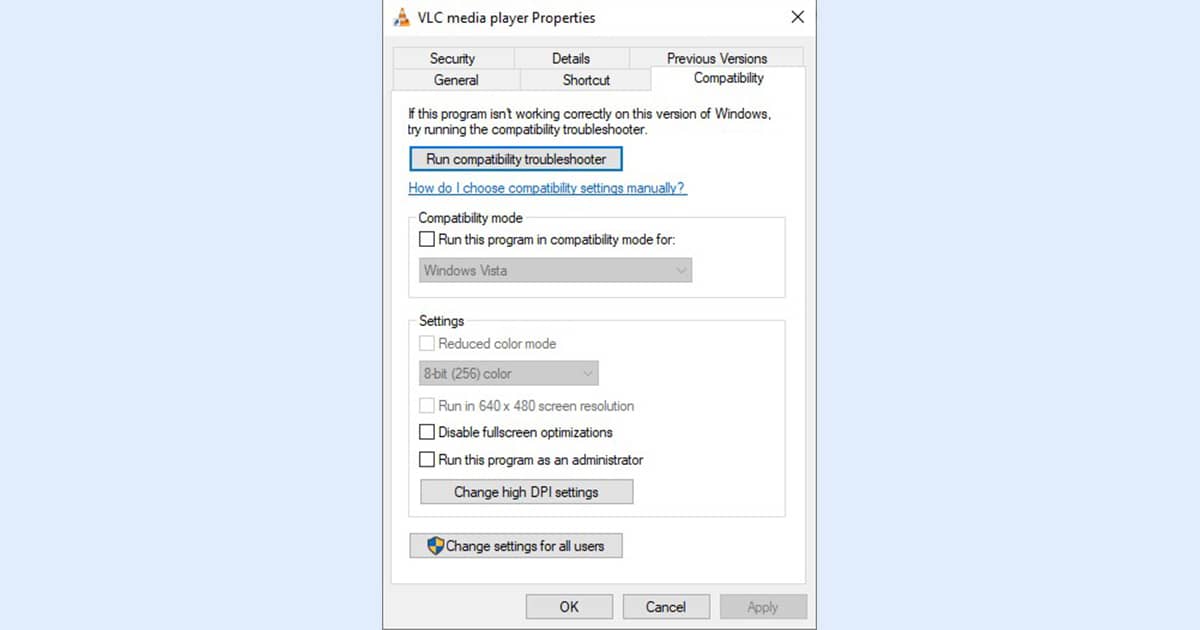 If neither of these solutions works, you may need to uninstall and reinstall the software. Sometimes, incompatibilities can occur when certain files become corrupt. Uninstalling and reinstalling should replace any corrupt files and hopefully fix the compatibility issue.